
Category:
VCM vGPU Bookings
To reserve a session for your vGPU VM, please visit vcm.duke.edu. Under
the 'My VMs' section, locate your VM listed as vcm-xxxxx.vm.duke.edu. It
will be labeled as a 'vGPU VM' on the right-hand side.
Clicking on your VM will bring up the standard reservation view, now
enhanced with a 'Session Management' section at the top. This section
includes two options: 'Book Now' and 'Future Bookings'.

▶ Book Now
The 'Book Now' option allows users to initiate an immediate session. By
default, the start time is set to the previous hour, and users can
reserve the VM for up to four hours.
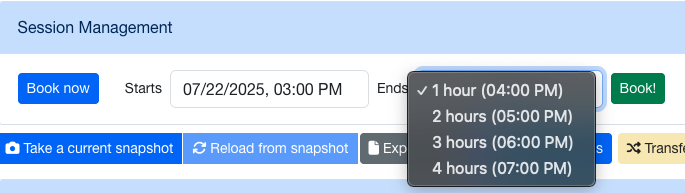
After selecting your desired booking period, you will be notified that
your VM is powering on, along with the duration of availability. A
reminder email will be sent 30 minutes before your session ends.
Additionally, you can use the yellow icon to extend your booking or the
red icon to cancel it.

▶ Future Bookings
The 'Future Bookings' option enables users to schedule a VM session in
advance. You must specify a start date and the desired duration for the
booking.
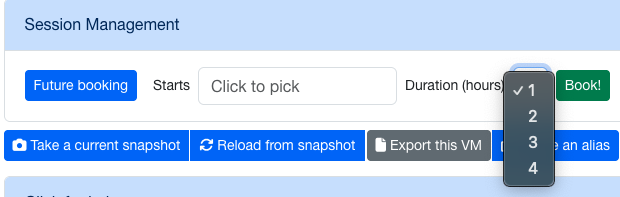
Once confirmed, a message will appear on the VCM site indicating your
reserved time. A reminder email will also be sent 30 minutes prior to
the start of your session.

You will receive a confirmation email from the VCM team with the details
of your booking.
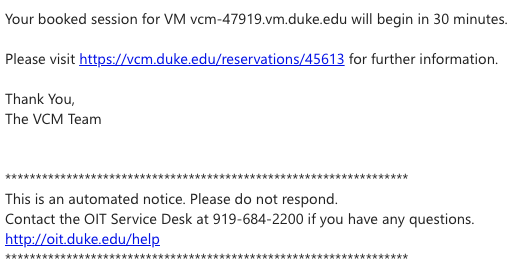
The VCM team will send an additional confirmation email to notify users
that the VM has been powered on and is ready for use.
